

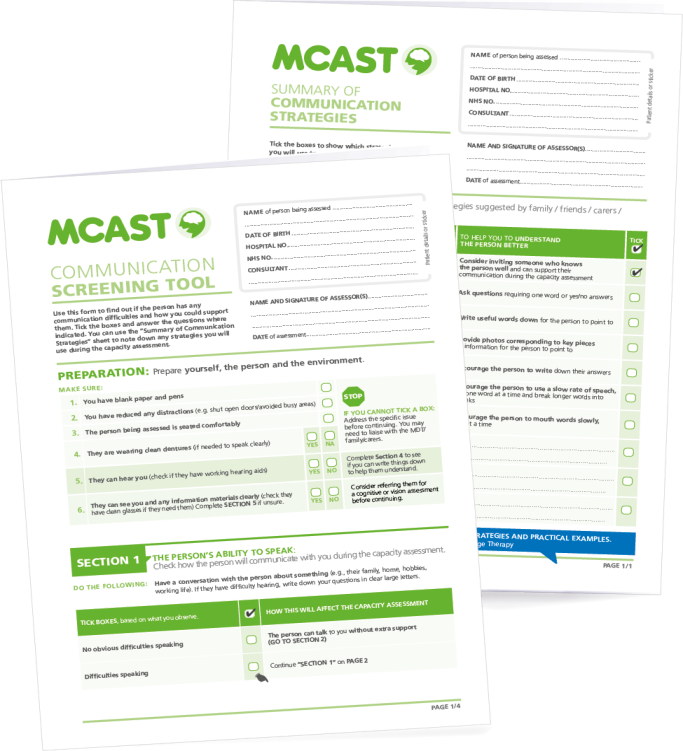
MCAST Communication Screening Tool
What is the MCAST Communication Screening Tool?
This tool is designed to help you to identify if a patient has any communication difficulties which may affect their ability to make a decision. It does not replace the capacity assessment itself but helps you to prepare for it. The tool takes less than 15 minutes to use.
When should I use it?
You should use it before the capacity assessment if you do not know if the person you are assessing has any communication needs or how to support their individual communication needs. It is important that you use the tool to help you to identify if someone has any communication support needs early and make plans about how you will support these needs during the capacity assessment.
What will it help me to do?
If the person has some milder communication difficulties, the screening tool will tell you to use some simple strategies to support the person to communicate during the capacity assessment.
If the person has more significant communication needs, the screening tool will tell you that you need to ask a speech and language therapist to help you to provide more communication support during the capacity assessment.
Who can I use the tool to screen?
The communication screening tool was recently validated in a research study. This showed that the tool provides valid and reliable outcomes when used with stroke survivors. You can read more about this research in this journal article. You can use the tool with people who have other health conditions, but we cannot guarantee it will give you accurate answers about their communication needs. If in doubt, always seek support from a speech and language therapist.
How do I use the Communication Screening Tool?
The Communication Screening Tool has instructions on it explaining how to complete each section but before you use it, please watch this short presentation that explains how the tool works and what you need to do. Healthcare practitioners who helped us to test out the screening tool suggested you may find it helpful to refresh your understanding of how to use the tool by rewatching the presentation at regular intervals.
Other items you will need:
How to watch the presentation
- Make sure you have the volume turned up on your computer. You will need access to the audio function to watch the videos and listen to the commentary.
- Open the PowerPoint presentation and click on ‘Slide Show’ icon at the top of the screen. This will take you into presentation mode.
- The audio commentary should start as soon as you open the presentation. To pause or rewind the audio, hover over the audio symbol in the top left-hand corner of the slide. This will bring up the audio toolbar.
- You will need to left click on your mouse / hit return on your keyboard to move on to the next slide.
- To watch the videos, hover over the video with your mouse to bring up the control bar so you can play / pause the video.
- Exit slideshow mode if you need access to the written notes, which are at the bottom of each slide. The written notes are the same as the spoken commentary.